
TL;DR

Get home appliances delivered free with Prime
- Fast, free delivery on millions of items
- Prime Video, Amazon Music and more included
- Member-only deals all year
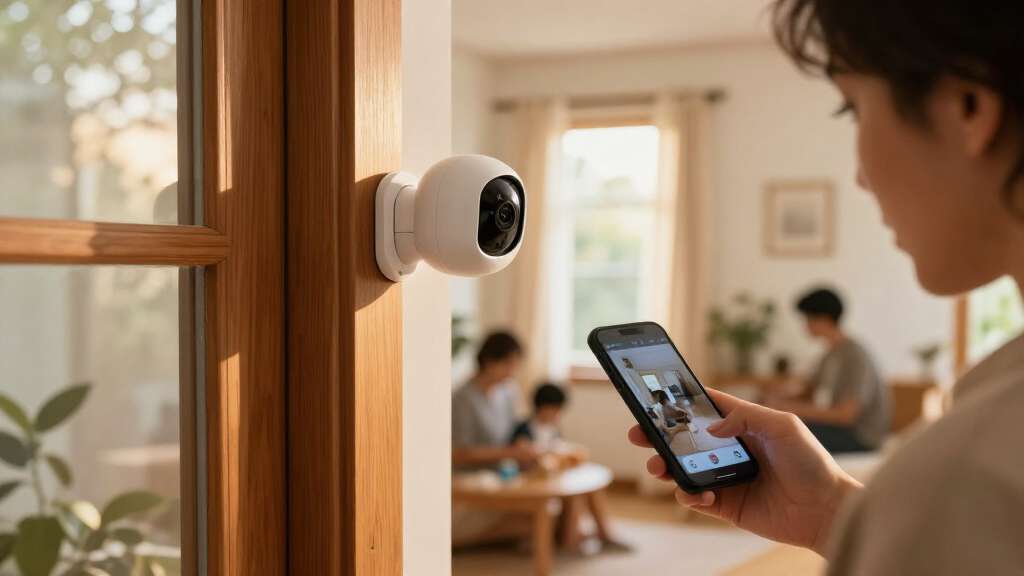
Smart home security cameras let you check your home remotely and receive alerts when they detect activity. Choose a camera for the view, power, connection, storage, and privacy controls you need; then place it carefully and tune alerts to avoid noise. A high-resolution camera cannot compensate for poor lighting, weak Wi-Fi, or footage stored in an account with weak security.
A camera can send you an alert about a package at your door while you’re still on the train home. It can also ping your phone twelve times because a tree branch keeps moving in the wind. Smart home security cameras are useful when their view, alerts, storage, and connection match the way you live.
This guide explains what these cameras can do, how cloud and local recording differ, and which tradeoffs deserve a closer look before you buy. You’ll also find practical advice for placement, account security, and setup, so you can get a clearer picture of what’s happening at home without pointing a lens everywhere.
Think of the camera as one part of a system: power, Wi-Fi, software, storage, and your settings all affect what you can see later. A crisp image is only helpful if the camera captures the right moment and you can still access the clip.
Choose a camera around a specific job, such as watching a doorway or checking deliveries.
Test the camera’s angle, night view, and Wi-Fi signal before mounting it permanently.
Compare cloud fees and retention with the cost, capacity, and theft risk of local storage.
Tune activity zones and detection settings so useful alerts stand out from routine movement.
Use a unique password, multifactor authentication where available, current firmware, and careful sharing settings.
What Smart Home Security Cameras Can Actually Do
Smart home security cameras capture video and connect it to an app so you can check a home remotely and receive alerts when activity matches your settings. Many detect motion; some can sort events into people, pets, or vehicles, while doorbell models focus on visitors at the entrance. Features vary by model and subscription.
That sorting can turn a noisy stream of alerts into a useful nudge. For example, if your dog crosses the living room each afternoon, a pet filter may keep those clips out of your phone notifications while still alerting you when someone approaches the front door. It works best when the camera has a clear view and the detection zones exclude moving curtains or a busy sidewalk.
A camera is not an all-seeing guard. It can miss activity outside its frame, in poor light, or during a power or network interruption. Higher resolution may reveal more detail, but lens quality, distance, motion blur, glare, and compression also shape what the recording shows.
Before buying, decide what you want the system to do: check deliveries, watch an entry, or review activity while away. That specific job helps you choose between an indoor camera, weather-rated outdoor camera, doorbell camera, or a system connected to a recorder. According to the product details you review, some features may need a cloud plan, so check what works without one.
Products Worth Considering

eufy Security SoloCam E42 4K Solar Security Camera with AI Motion Tracking

eufy Security 4G LTE Cam S330 4K Solar Outdoor Camera with Pan and Tilt, AI Tracking, SIM Card and 32GB SD Card

eufy Security SoloCam S340 3K Dual-Lens Solar Security Camera
As an affiliate, we earn on qualifying purchases.
Choose a View That Captures Useful Details
Placement and lighting determine whether footage is useful: the camera needs a steady view of the activity you care about, enough light to record it, and a connection that reaches the device. A camera mounted too high may show the top of a visitor’s head; one aimed at a bright window can leave a face in shadow.
Start with entry points where a clear view can answer a practical question, such as whether a delivery arrived or which person opened the side gate. In a real setup, a homeowner might mount an outdoor camera under an eave facing the front path, then adjust it to avoid recording a neighbor’s windows. For indoor coverage, a shelf facing the hallway can watch the route to the entrance without pointing into a bedroom.
Outdoor and indoor models are not interchangeable by default. Use an outdoor camera rated for the expected weather and temperature, and check that its power source and Wi-Fi reach the mounting spot. If a wired installation involves new electrical work, hire a licensed professional; switch off power before any permitted work and use suitable protective equipment.
Test the view at night as well as during the day. Headlights, porch lights, glass reflections, and dark corners can change the picture dramatically. A quick walk past the camera can show whether it catches faces and movement at the distance that matters. A useful view beats a higher number on the box.
Compare Cloud and Local Storage Before You Pay
Cloud storage keeps recordings on a provider’s service, while local storage saves them to a memory card, hub, or recorder at home. Cloud access can make clips available when you’re away and may preserve recordings if someone takes the camera. Local recording can reduce subscription dependence, but the device holding the footage can be stolen, damaged, or fail. The choice affects more than where files sit: it determines what evidence remains after an incident and what you can retrieve when the network is down.
Picture a camera pointed at the front door. With cloud recording, you may be able to retrieve the clip after the camera itself goes missing, depending on the plan and retention period. That benefit comes with recurring cost and reliance on the provider’s service and account security. With a memory card, you avoid some recurring fees and may keep recording through an internet outage, but a thief who takes the camera may take its recordings too. A local hub stored in a less obvious place can reduce that risk, though it still needs power and may need a separate backup.
Storage capacity depends on how often the camera records, clip length, video quality, and whether it captures continuously or only after events. Continuous recording can create a fuller timeline, but fills storage faster and may increase subscription or equipment costs. Event-only recording saves space, but narrow detection zones or missed motion can leave gaps. Check how long clips remain available, whether old footage is overwritten automatically, and what features stop working if you cancel a plan. Retention time matters because a problem may not be noticed on the day it happens.
| Storage choice | What it offers | What to check |
|---|---|---|
| Cloud | Off-site access and clips that may survive camera theft | Monthly cost, retention period, service availability, and plan limits |
| Memory card | Local recording with fewer recurring fees | Capacity, overwrite settings, outage behavior, and theft risk |
| Hub or recorder | Central storage for multiple cameras | Upfront cost, placement, backup, power, and compatibility |
Make Alerts Helpful Instead of Constant
Camera alerts work best when they flag activity you care about, not every moving shadow. Motion detection can be sensitive to changes in light, tree branches, passing cars, and pets. Person, pet, and vehicle detection can help sort events, but performance depends on the camera, its position, lighting, and settings.
For example, a camera facing a sidewalk might send a phone alert each time someone walks past the house. An activity zone that covers the porch but excludes the pavement can reduce those interruptions. If a camera offers sensitivity controls, lower the setting gradually and test it with a person walking through the area you actually want to monitor.
Too many alerts create a quiet problem: you may start ignoring the one that matters. A homeowner who gets repeated notifications from a flag in the wind might miss a delivery alert later in the day. Before relying on any detection feature, check how it behaves at different times and in changing weather.
Use notification options to match the camera’s role. You may want immediate alerts for an exterior door and a daily activity summary for a room where a pet wanders. Small, deliberate adjustments can make the system calmer and more useful without turning off notifications entirely.
Protect Your Footage and the People in View
Camera privacy depends on both account security and where the lens points. Recordings can show visitors, family routines, or conversations, so protect access and limit collection to the areas you need. A camera aimed at your front step may also capture passersby; an indoor camera may record more than you intend when everyone is home.
Use a unique password for the camera account, turn on multifactor authentication when the maker offers it, and install firmware updates promptly. Review who has access and remove old shared accounts. For instance, if you once gave a house sitter access through a shared login, changing to separate accounts and revoking that access afterward gives you a clearer record of who can view clips.
Some cameras process more activity on the device or a local hub, which can reduce reliance on cloud analysis. Capabilities and data handling differ, so read current product documentation and privacy policies rather than assuming every camera handles footage the same way. Check how long recordings are retained and whether audio recording can be disabled.
Point the camera at the job you need it to do. Avoid unnecessary views into private rooms or neighboring property, and check local rules for audio recording and shared or public spaces.
These habits don’t make an internet-connected device risk-free, but they reduce easy ways for someone else to access your account. A little time spent on permissions and camera angles can protect both your footage and the people caught in it.
Set Up the Camera in Five Practical Steps
A careful setup helps you catch the events you care about and spot weak links early. Test the camera before you mount it permanently, then review its view, connection, alerts, and storage. A small adjustment in your hallway can save you from drilling a second set of holes later.
- Pick one purpose. Decide whether you want to watch a doorway, check deliveries, or see whether a pet is home. That keeps the camera’s placement focused.
- Check power and Wi-Fi. Test the signal at the planned location and confirm how the camera behaves if the internet goes down. Most app-connected consumer models rely on Wi-Fi for remote access; some local recording may continue during an outage if power remains.
- Test the angle. Temporarily place the camera and walk through the view. Check faces, glare, night vision, and whether the lens captures private areas unnecessarily.
- Set storage and alerts. Confirm whether clips go to the cloud, a card, or a hub, then choose activity zones and notification types that fit the camera’s purpose.
- Secure and review. Set a unique password, enable multifactor authentication if available, update firmware, and check shared users. Review a sample clip before relying on the setup.
Imagine testing an outdoor camera from the porch before attaching it above the garage. You notice the Wi-Fi drops near the far corner, and the evening sun washes out the walkway. Moving the camera a few feet and adjusting the angle may solve both problems without buying a more expensive model.
Battery cameras make placement easier, but you’ll need to recharge them. Wired models avoid routine charging, though they need a suitable power source. If installation requires electrical work, use a licensed professional and follow applicable safety and permit requirements.
Budget for the Whole System, Not Just the Camera
The purchase price is only one part of a camera’s cost. Add any subscription, required hub, memory card, replacement batteries, and likely installation needs. A low-cost camera can become more expensive over time if the features you want require a monthly plan.
For example, someone who only wants live viewing and basic local clips may be satisfied with a model that works without a subscription. Another household might value longer cloud history because it wants to retrieve recordings while away. In that case, compare the plan’s monthly price and retention window with the cost of a local hub and a backup strategy.
Compatibility deserves the same practical check. Camera makers may advertise smart-home integration, but the exact features that work with your speaker, display, doorbell, or platform can vary. Matter has standardized some smart-home connections, though camera support and cross-platform features have been less uniform than for simpler devices. Check the specific model’s compatibility list.
Finally, consider what keeps working through an outage. A battery camera may stay powered, but the Wi-Fi router can still lose power; a wired camera may stop if its power source fails. Match the system to your budget and likely interruptions, then decide which gaps you can accept.
Frequently Asked Questions
Do smart security cameras need Wi-Fi?
Most app-connected consumer cameras use Wi-Fi for remote viewing, notifications, or cloud features. Some models can record locally during an internet outage, but behavior depends on the camera, its power supply, and storage setup.
Do smart home security cameras need a subscription?
Not always. Some cameras offer live viewing and basic local recording without a plan, while cloud storage, longer clip history, or advanced detection may cost extra. Check which features remain available if you cancel.
Can a camera record without internet?
A model with local storage may keep recording during an internet outage if it still has power. Remote viewing and cloud functions generally need an internet connection, so local recording is not the same as access from your phone.
Are smart cameras secure from hackers?
No internet-connected camera is risk-free. Use a unique account password, enable multifactor authentication if offered, install updates, and review account access and sharing settings.
Can I use an indoor camera outside?
Only if the manufacturer rates it for outdoor weather and temperature conditions. An indoor model may not withstand rain, heat, cold, or humidity, even under a sheltered porch.
Is higher resolution always better?
Higher resolution can show more detail, but it cannot fix a poor angle, low light, motion blur, or glare. A well-placed camera with a clear view can produce more useful footage than a higher-resolution model pointed at the wrong spot.
Conclusion
Choose a camera for the moment you need to see: the package at the door, the gate after dark, or the hallway while you’re away. Then test its view, connection, storage, and alerts before you trust it. Good security comes from a useful camera in a sensible place, backed by protected accounts and settings you understand.
When the phone buzzes, you should know why. That’s the difference between a camera that watches and a system that helps you feel informed.